Wanda Martins
Acrescentar serviço
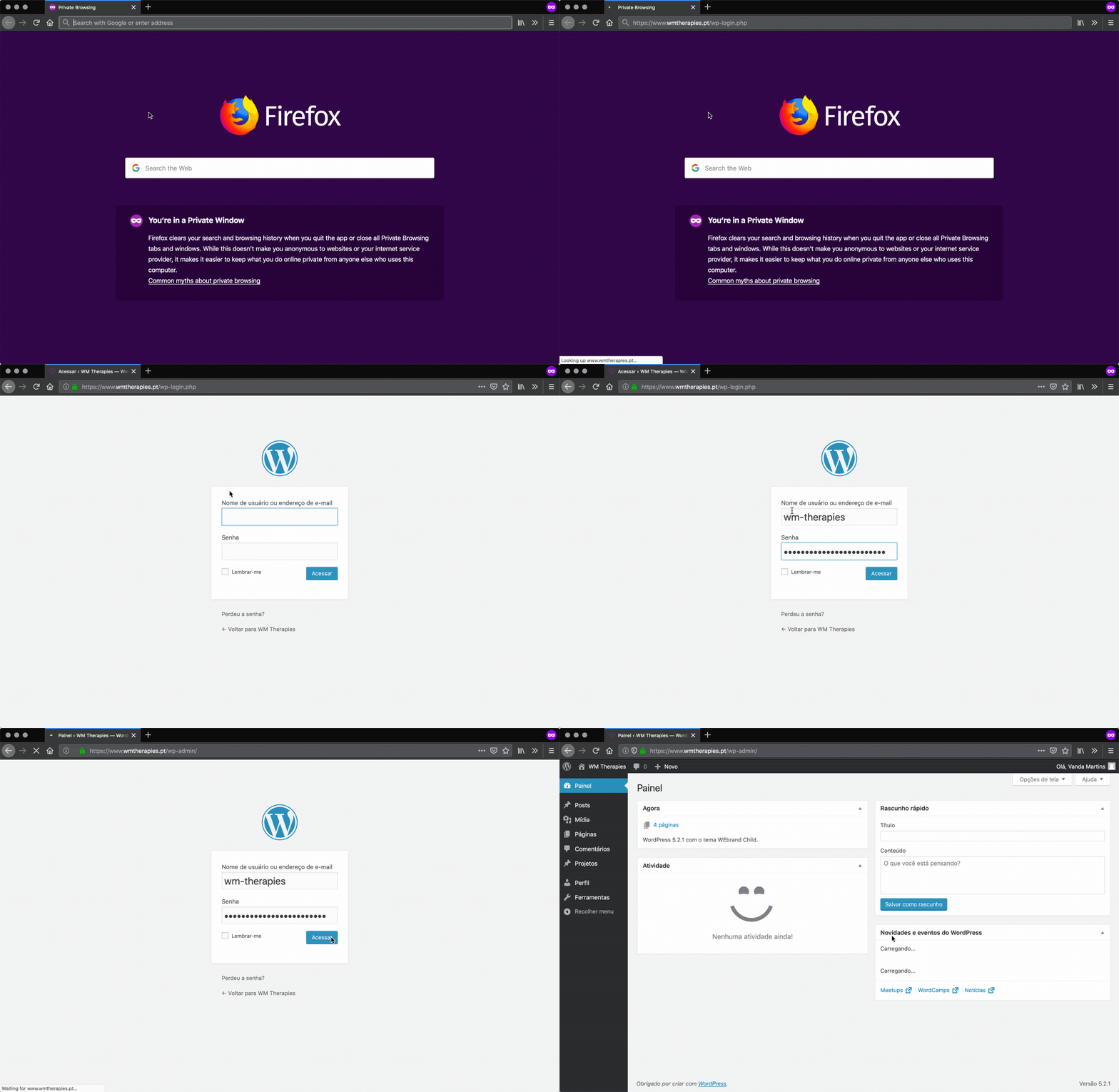
Go to https://www.wmtherapies.pt/wp-login.php and login.
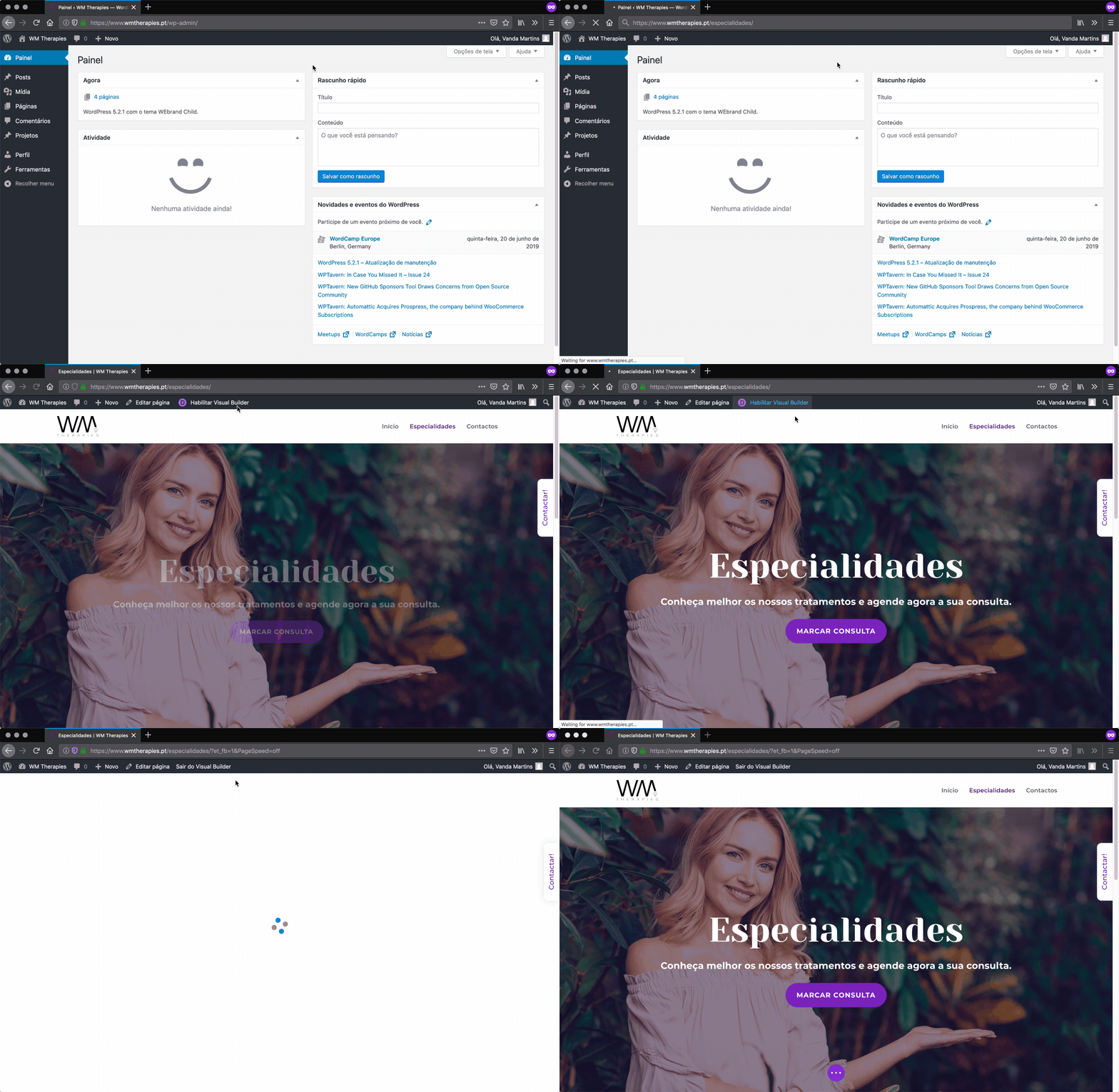
Go to https://www.wmtherapies.pt/especialidades/ and click on “Habilitar visual Builder” on top bar.
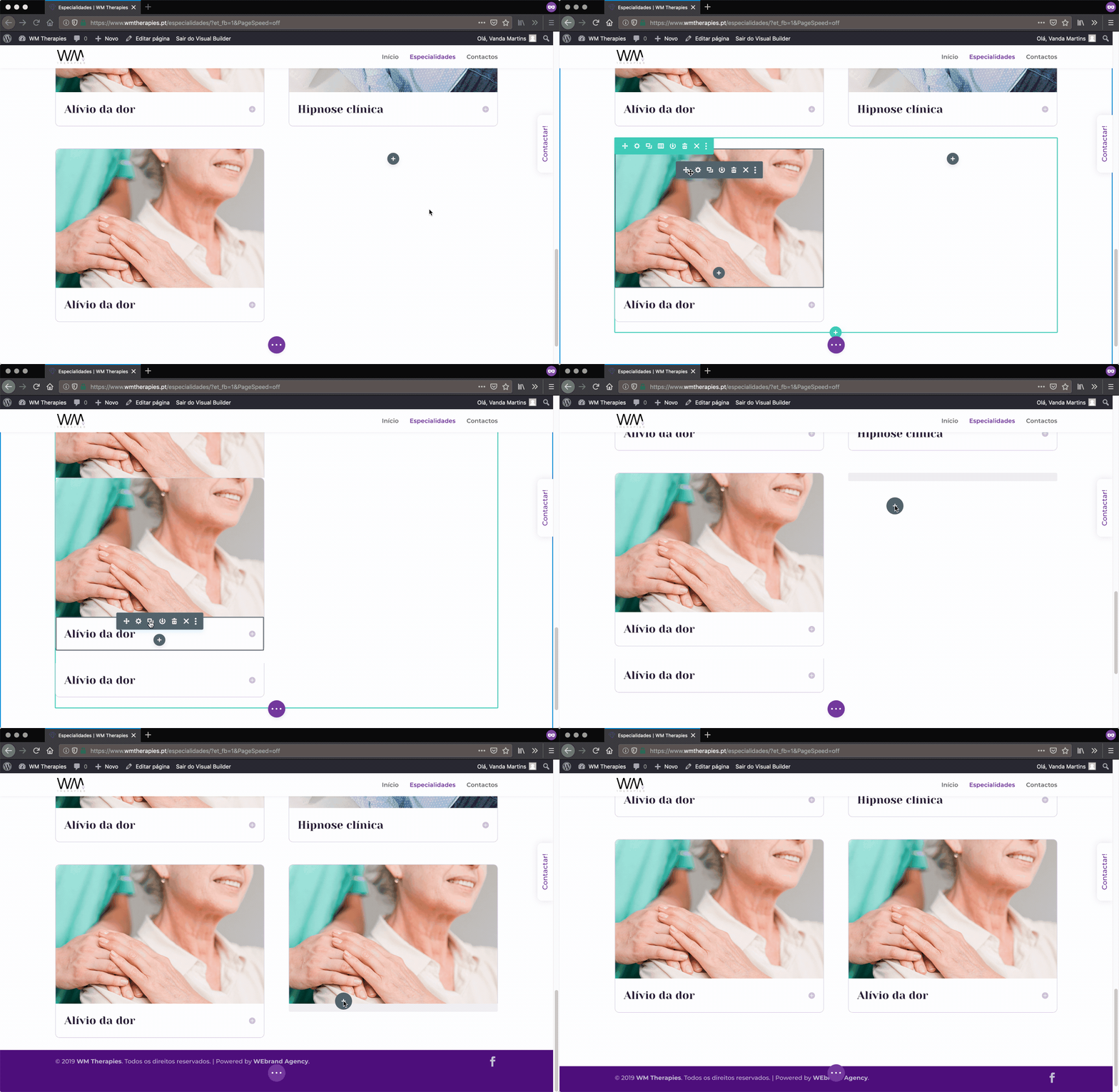
It the last row (in this case row #2) is full, find the Row container (surounded by a green border when you hover over it) and its options located on the top left of the row (they appear when you click on the Row) and click on the duplicate icon. Delte the modules you don’t need (ex. when you want to add only 1 service) by clicking on them to show their options and clicking on the delete icon afterwards.
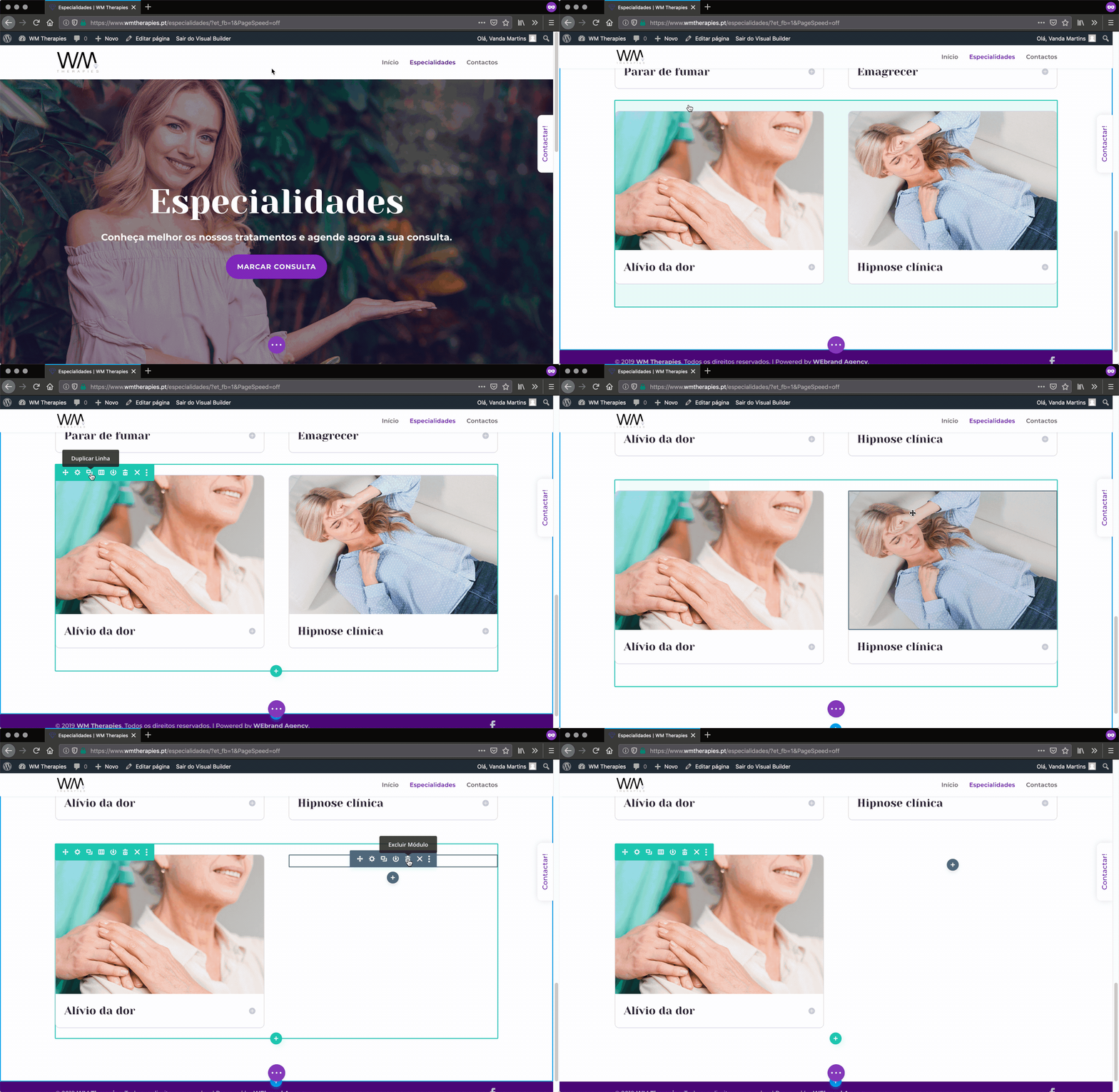
If the last row has space for more services, duplicate the image and content module instead by clicking on them to show the options and then clicking on the duplicate icon. After duplicating them, drag and drop them to the empty column.
Click on the circle with 3 dots on the bottom of the screen to show more options and then on the Wireframe view button. Scroll up to find the “Codigo” module and click on its configuration icon. Copy the code that goes for 3 lines starting with
jQueryand paste it on a new line before the last});for each new service. Update the numbers in.et_pb_image_xand.et_pb_toggle_xby following the sequence. Make sure the last number you have is 1 less than the amount of services you will be showing. For example, we had until number 3 before starting because we had 4 services and then added 2 more blocks of code until we had 5 as the final number since we are adding 2 new services on this example. Click on the checkmark icon on the bottom right corner of the configuration popup to save changes and close it and then on the Desktop view icon on the bar at the bottom left of the screen to get back to the actual view of the webpage.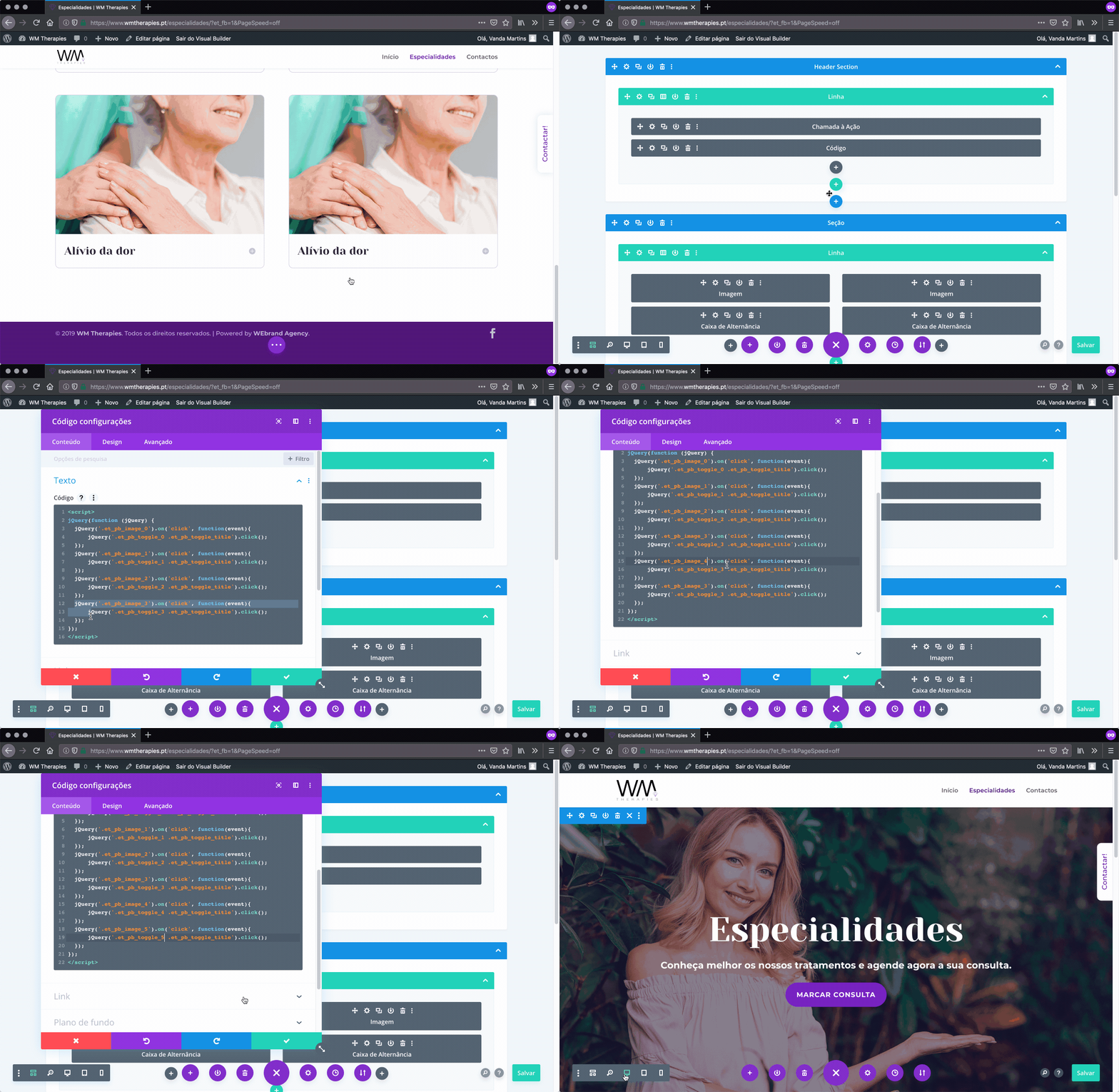
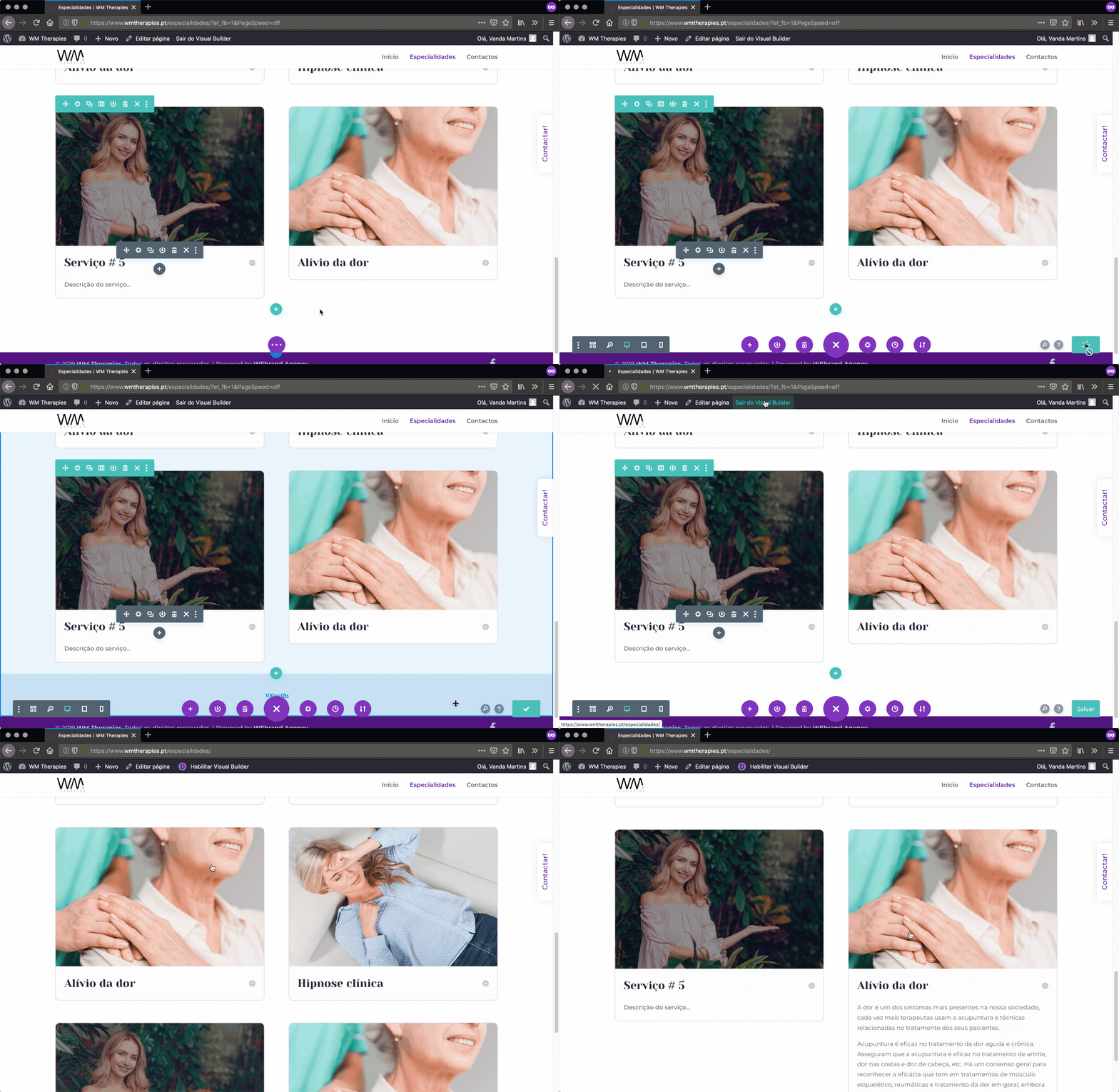
Update the services image and content by clicking on each module to show more options and then on the configuration icon.
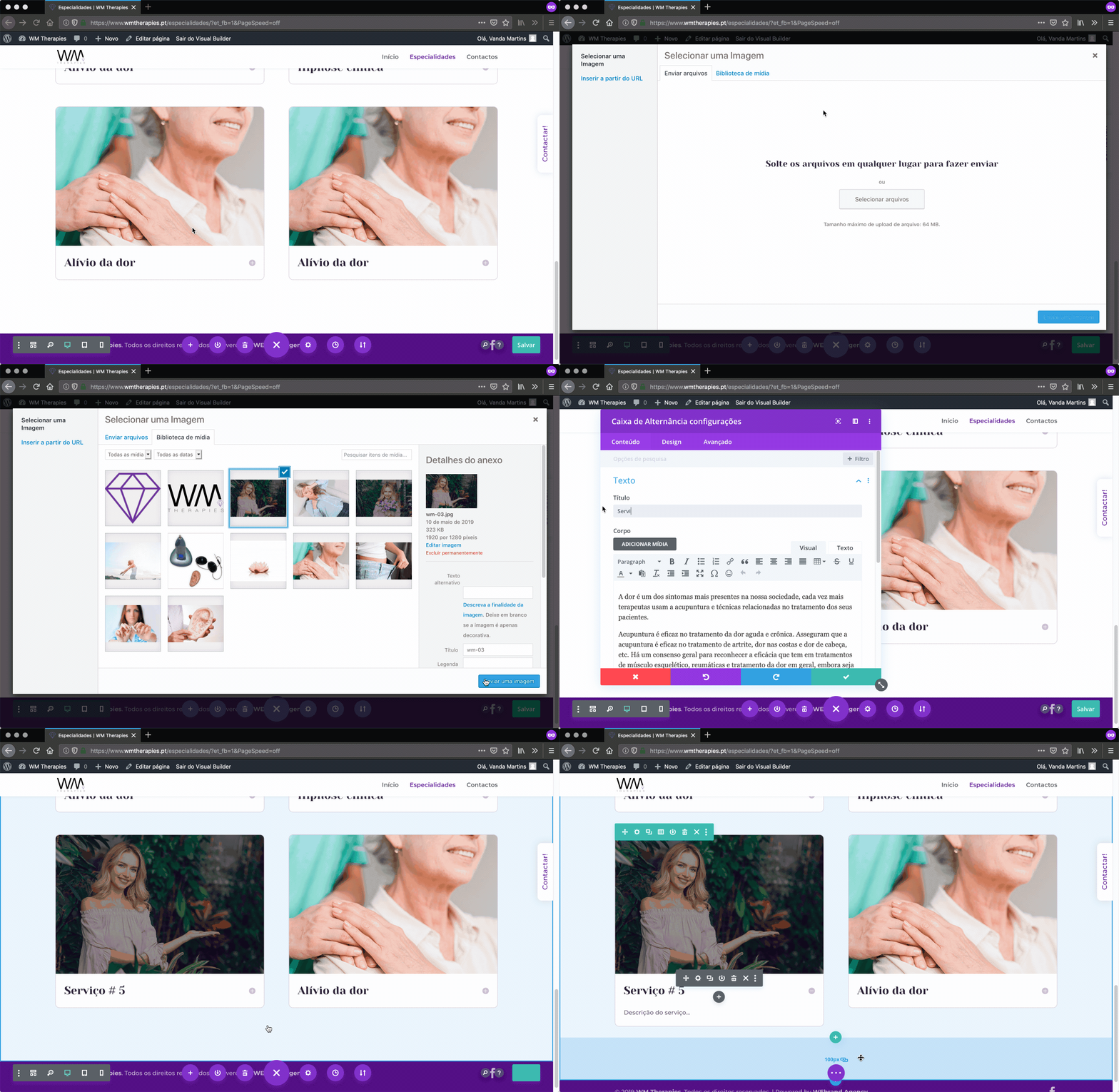
Click on the green save button on the bottom right to save the changes. If you can’t see the button, click on the 3 dot icon on the bottom of the screen.
Then click the exit button on the top bar to see the actual webpage. Test that the toggles are working by clicking on the image of each new service.